# The Basics of Web Development
Table of Contents
So you want to make a website? A cute little website? What year do you think this is, 1999?
Well, it may not be 1999 anymore (unfortunately…) but it’s a damn good time to start building that website of your dreams. Many people find the idea of coding very intimidating, but I’m here to tell you that it’s actually never been easier to get started.
Believe it or not, technology has advanced a lot since 1999. But basically all of the core ideas behind the World Wide Web remain the same. Let’s dive into the first principles of web development to start your coding journey on great footing and armed with the power of love.
What is a Website?
Now you may find yourself full of exuberance and fear, hands frozen and dangling over your keyboard with a single bead of sweat forming atop your brow. You’re ready to start coding your Deathnote fan site when a terrible realization enters your mind:
What… what actually is a website??? ;-;
According to me making up random facts, 97% of internet users have wondered this exact same thing at some point in their life. You are not alone! What is it?? What am I looking at?? How do all of these words and colors and images show up on my screen??
We Have Websites at Home!
If you’re a normal person (or really good at pretending to be), you’re probably only familiar with typing in a URL (like tumblr.com) and getting a website magically shipped to your browser from the bowels of the internet. We’ll get into how that works later.
For now just know that you can have websites that live on your own hard drive and open up in your browser like any other website would. You can develop websites locally (aka on your own computer) with just a browser and a text editor. So let’s do that!
Your First HTML File
The simplest form of a website is just a folder with one or more HTML files. Another word for folder is a directory, and that’s the term I’ll be using from now on. To begin, let’s create a directory called my-website and then create a file called index.html inside of it:
Inside of index.html, paste the following code:
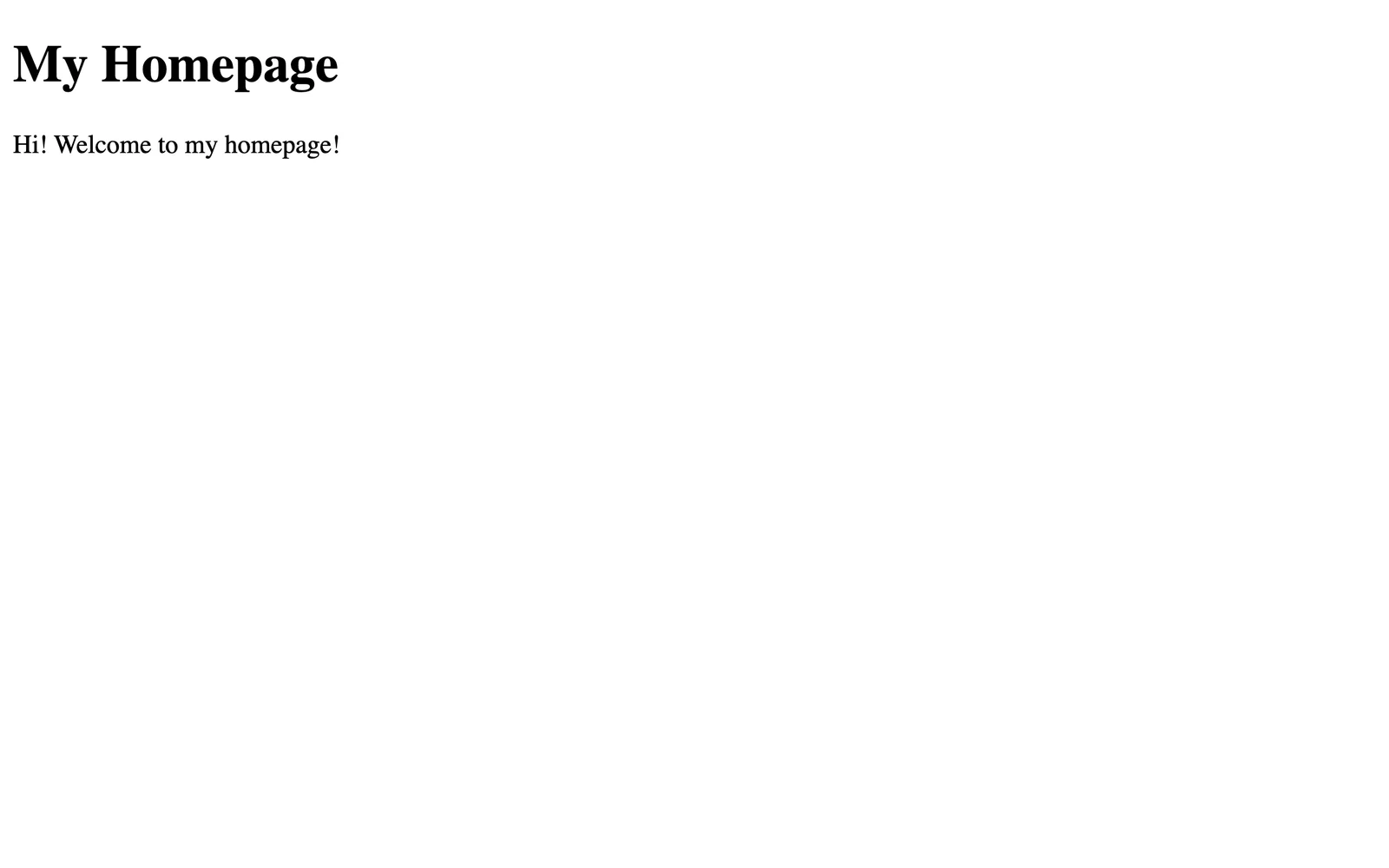
<!doctype html><html lang="en-US"> <head> <meta charset="utf-8" /> <meta name="viewport" content="width=device-width" /> <title>My Website</title> </head> <body> <h1>My Homepage</h1> <p>Hi! Welcome to my homepage!</p> </body></html>Now go to your browser and click File -> Open File and select your index.html file. You should see the text from the file in the browser pane. You can change the text in index.html, save the file, and then refresh the browser page to see your updates.
What is HTML?
HTML stands for HyperText Markup Language. They keyword here is actually Markup. In this case, the word markup means:
The collection of detailed stylistic instructions written on a manuscript that is to be typeset.
Wait, manuscript and typeset? Are we in 1999 or 1799?

Turns out… a little bit of both! The idea behind HTML comes straight from traditional publishing methods which literally involved “marking up” paper manuscripts with a pen to describe how they should be printed. People have been making shorthand notations about how pages should be laid out and printed for hundreds of years. Digital documents are “printed out” by your browser every time you load a webpage. The pixels on your computer screen are the paper and ink.
So let’s go over some core principles of HTML:
- HTML is made of elements that have silly little names like
head,body,h1, andp. - Most elements have an opening and closing tag to accomodate nested content (A paragraph:
<p>hii</p>), but some elements cannot have nested content so they only need a single tag (A horizontal line:<hr>). - Every element has a distinct use case that signals to the browser the type of content it contains. For example, the main heading of the webpage should be inside of an
h1element:<h1>How to Bake a Cake</h1>. We call this an element’s semantic meaning. Using the right tags will increase accessibility by making it easy to use assistive technologies like screen readers for the visually impaired. - Most elements are for visual purposes, but some elements are just for keeping things organized (
html,head,body), storing important metadata about the webpage (meta,title), or linking CSS and Javascript (link,script).
Tools of the Trade
Now that we have a basic webpage set up, let’s talk about the most important tools for web development.
The Text Editor
Text? In my editor? It’s more likely than you think.
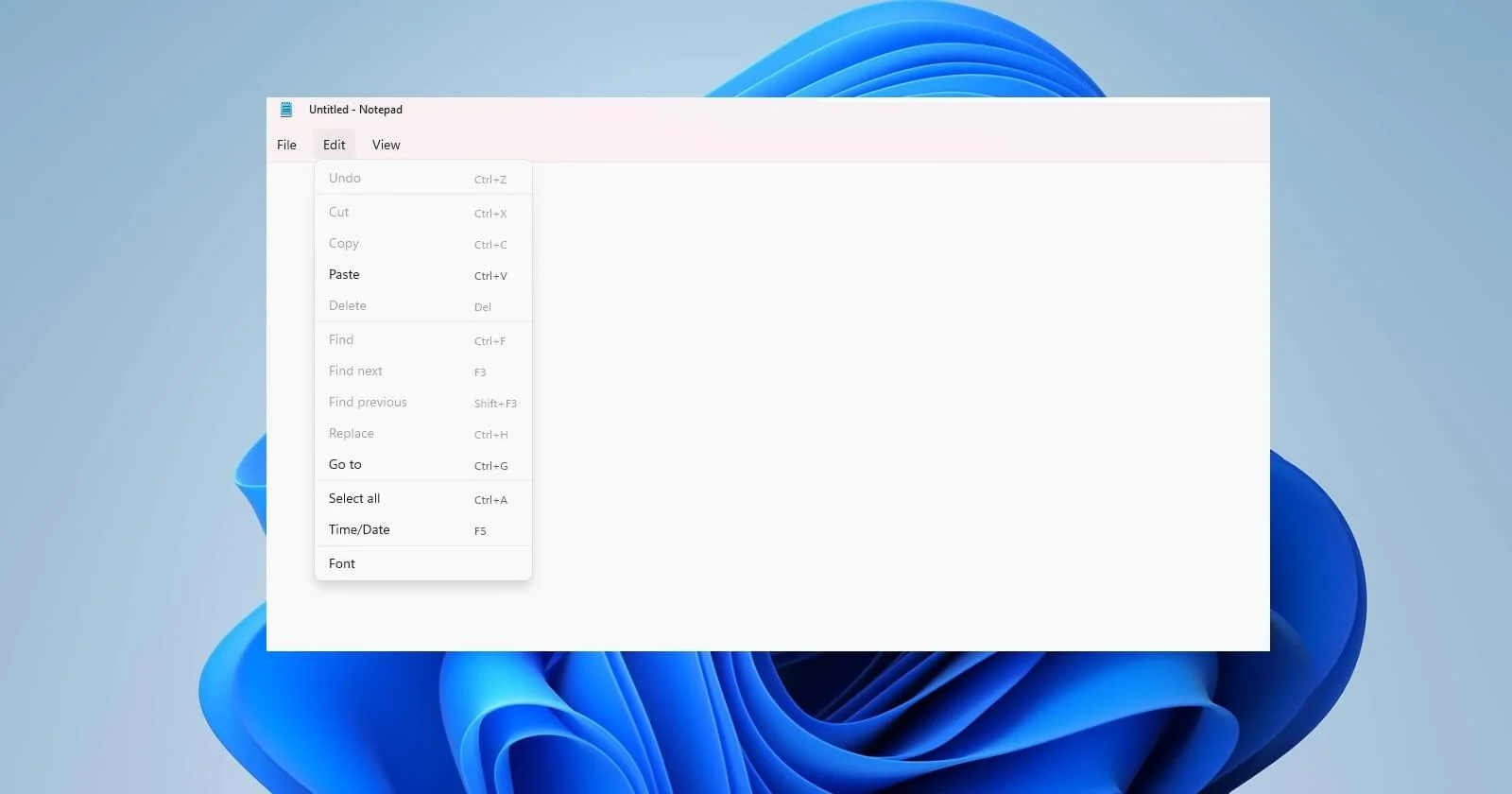
Let’s get something out of the way: HTML files (and all coding files for that matter) are just plain text. This means we can’t edit them in Microsoft Word or Google Docs. We need an editor that is… kind of dumb. No fancy formatting involved. Just plain letters and numbers written straight to your hard drive.
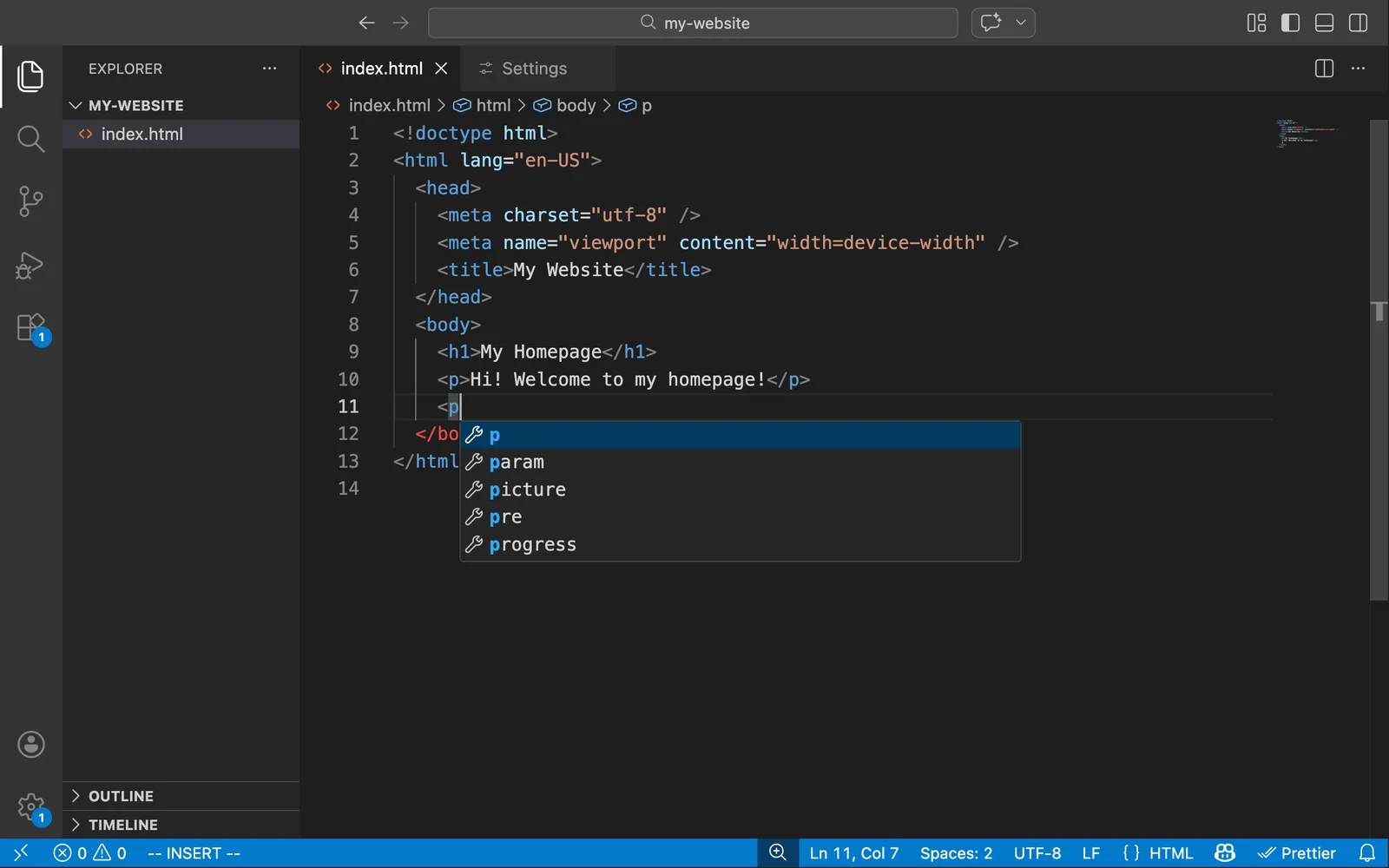
Now you could use something like Notepad on Windows or TextEdit on MacOS. Don’t do that. It’s 2026 and we have an amazing selection of plain text editors that are specifically designed to help you write code. The most popular (by far) is a free, cross-platform app called Visual Studio Code (VSCode for short) by Microsoft.
VSCode Tips
Here are some tips I recommend to almost everyone:
- Enable automatic file saving:
Settings -> Files: Auto Save -> afterDelay - Install the Live Server extension to quickly see your changes in the browser without having to manually refresh the page.
- Check out the interactive theme chooser and pick a color theme that you like:
View -> Command Palette -> Browse Color Themes in Marketplace -> (use arrow keys to preview theme and hit enter to install it)
The Browser
The other crucial tool of web development is of course… the browser! It’s the gateway to the World Wide Web, and we’ll obviously be using it all the time while coding.
One Browser to Rule Them All
As web standards became more and more complex throughout the 21st century, the cost required to actually build and maintain a browser increased astronomically. At this point, only a few organizations in the world can actually keep up. For better or for worse, Google Chrome has become the obvious winner of the browser wars:
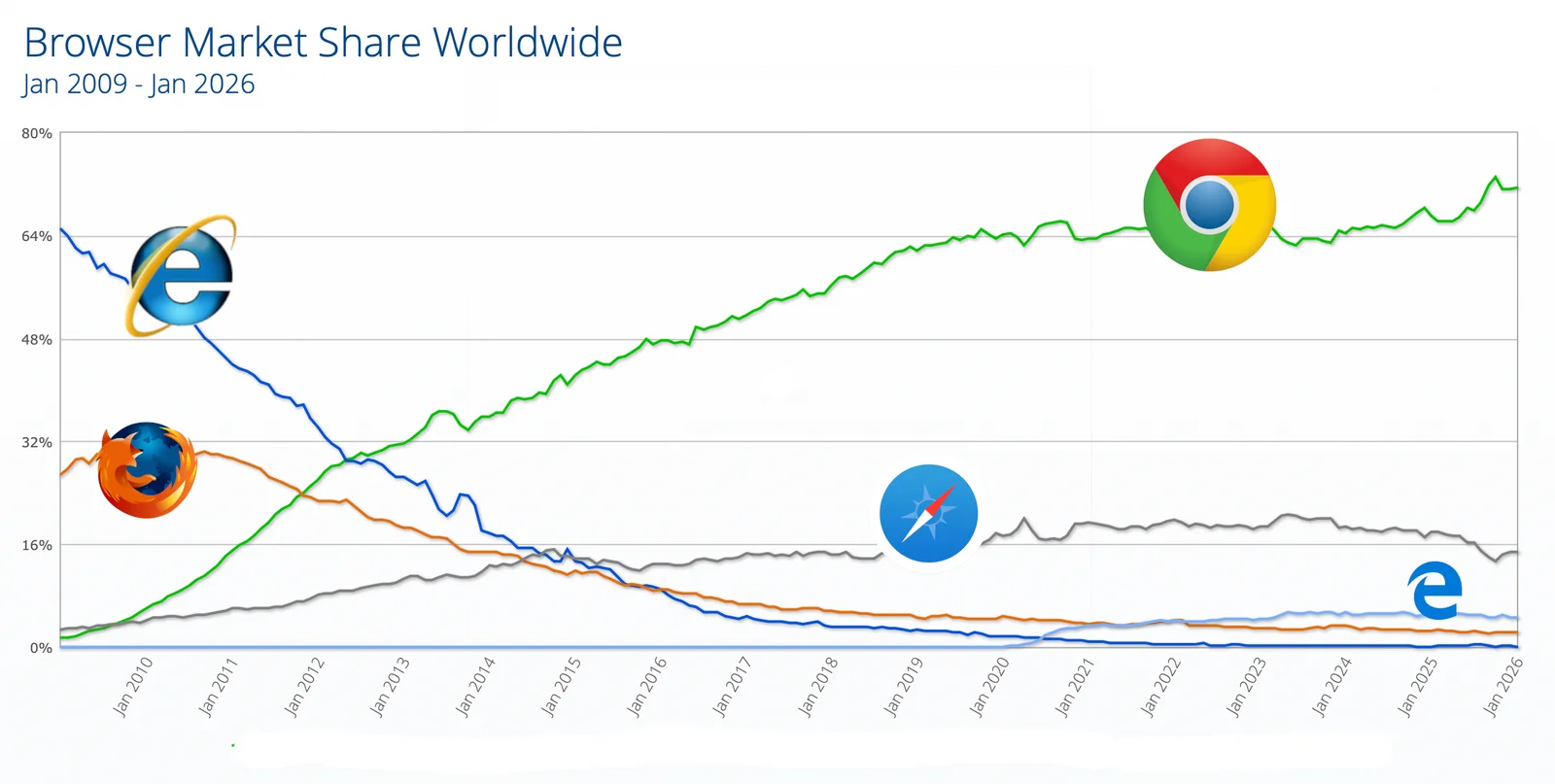
When doing web development, you can use any major browser you like, but you should at least periodically check that your site works well on Chrome because that’s what most of your visitors will be using.
Browser DevTools
What if I told you that browsers have a secret panel that only hackers know about?

Shhh. Don’t tell anyone. I’m only telling you because you’re cool af. Go to View -> Developer -> Developer Tools (or follow this guide) and BOOM. You have hacked into the mainframe of your browser.
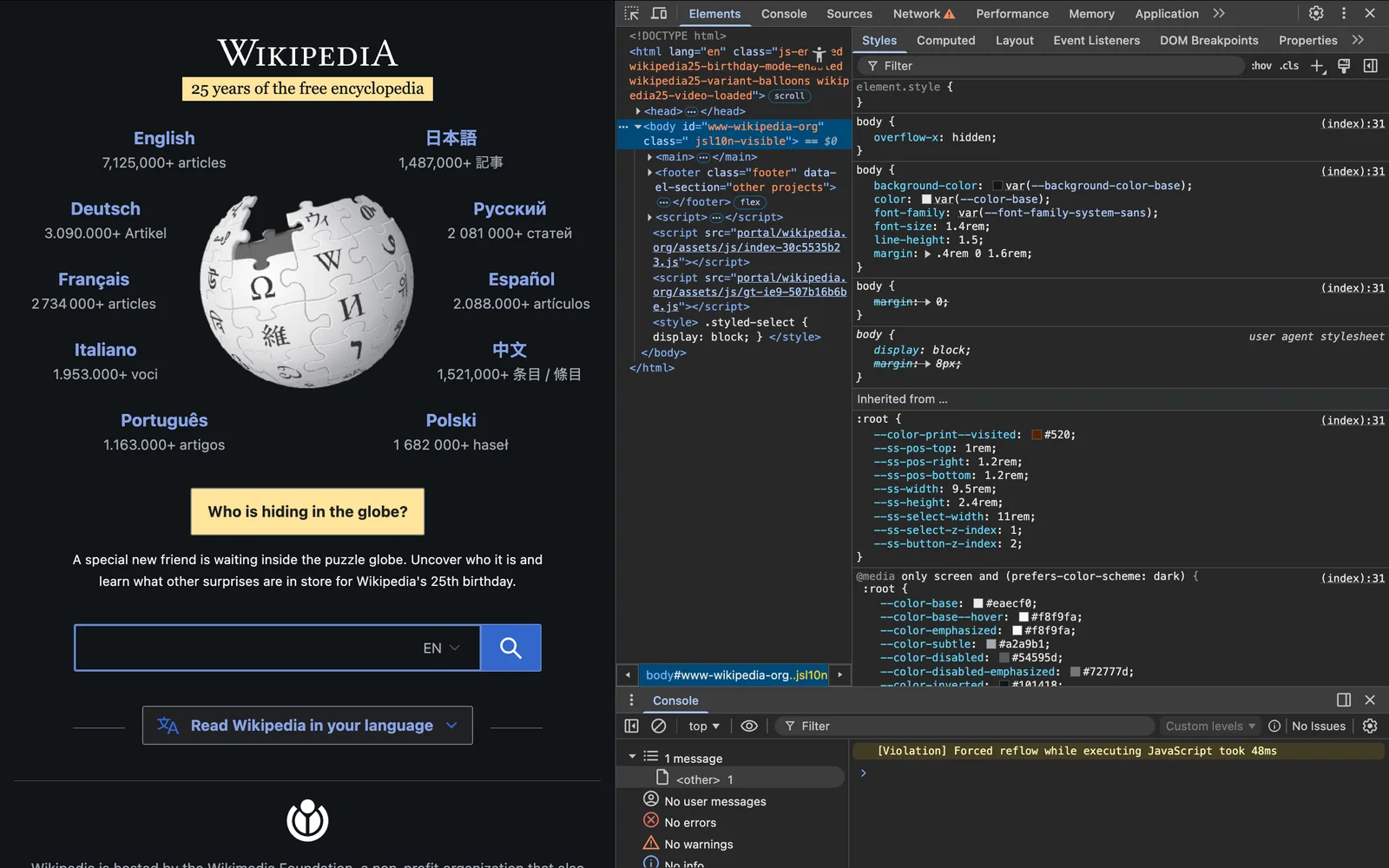
Whoa! That’s a lot of intimidating looking… stuff. But you’re a hacker now, and it’s much too late to turn back. We’ll talk more about DevTools later, but just know that it’s an extremely important tool for understanding what’s actually going on inside of your browser.
Just for funsies, click the icon at the top left corner of DevTools (the one with an arrow in it). Now hover over the webpage. Your mouse is now an interactive HTML inspector! Clicking an element will bring up the actual HTML the it comes from. This is only a sliver of DevTools’ power. It’s truly over 9000. Don’t be afraid to mess with it!
Adding Some Style
Ok, let’s make our little webpage a little cuter. I mean, what’s the point of making a website if it’s not cute??
The way you give your HTML custom colors, sizes, fonts, and layouts is through CSS which stands for Cascading Style Sheets. There’s a few ways to sprinkle CSS onto HTML, but I recommend adding a new CSS file to your website folder right off the bat. Let’s create a CSS file called main.css:
The browser isn’t going to know about main.css unless we add a link element inside of our index.html file:
<!doctype html><html lang="en-US"> <head> <meta charset="utf-8" /> <meta name="viewport" content="width=device-width" /> <title>My Website</title> <link href="./main.css" rel="stylesheet" /> </head> <body> <h1>My Homepage</h1> <p>Hi! Welcome to my homepage!</p> </body></html>And now inside of our main.css file:
* {  box-sizing: border-box;}
body {  margin: 0;  padding: 12px;  background-color: rgb(195, 213, 213);  font-family: Arial, Helvetica, sans-serif;  color: rgb(24, 28, 27);}
h1 {  font-family: Cambria, Cochin, Georgia, Times, 'Times New Roman', serif;  font-size: 3rem;  text-align: center;  margin: 48px 0;}
p {  padding: 0 24px;  margin: 12px auto;  max-width: 800px;}
Now start the Live Server extension in VSCode (or just open/refresh your index.html file in your browser) and you should see a webpage like this:
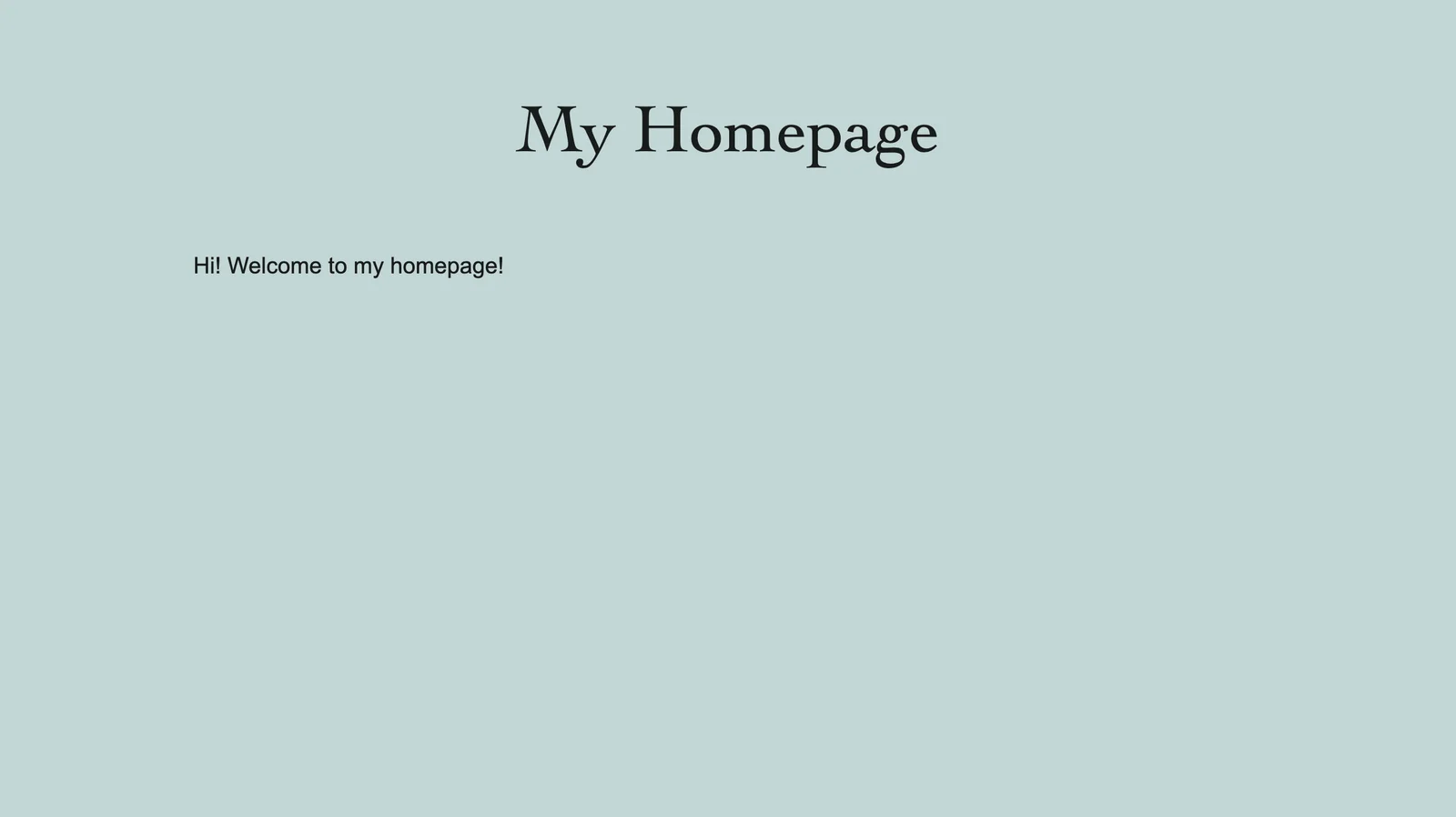
That’s significantly cuter! We won’t dive into the specifics of CSS yet, but you should mess around with it! Playing (aka throwing shit at the wall) is one of the best ways to learn!
My Favorite Learning Resources
The one constant similarity between all web devlopers in the world is that we all rely on online resources to learn and improve our skillz. I highly encourage checking these out.
Interactive Tutorials:
HTML:
CSS:
Next Up: Making a Shrine
Next time, we’ll keep working on our website and turn it into a simple shrine webpage dedicated to our favorite bird species:
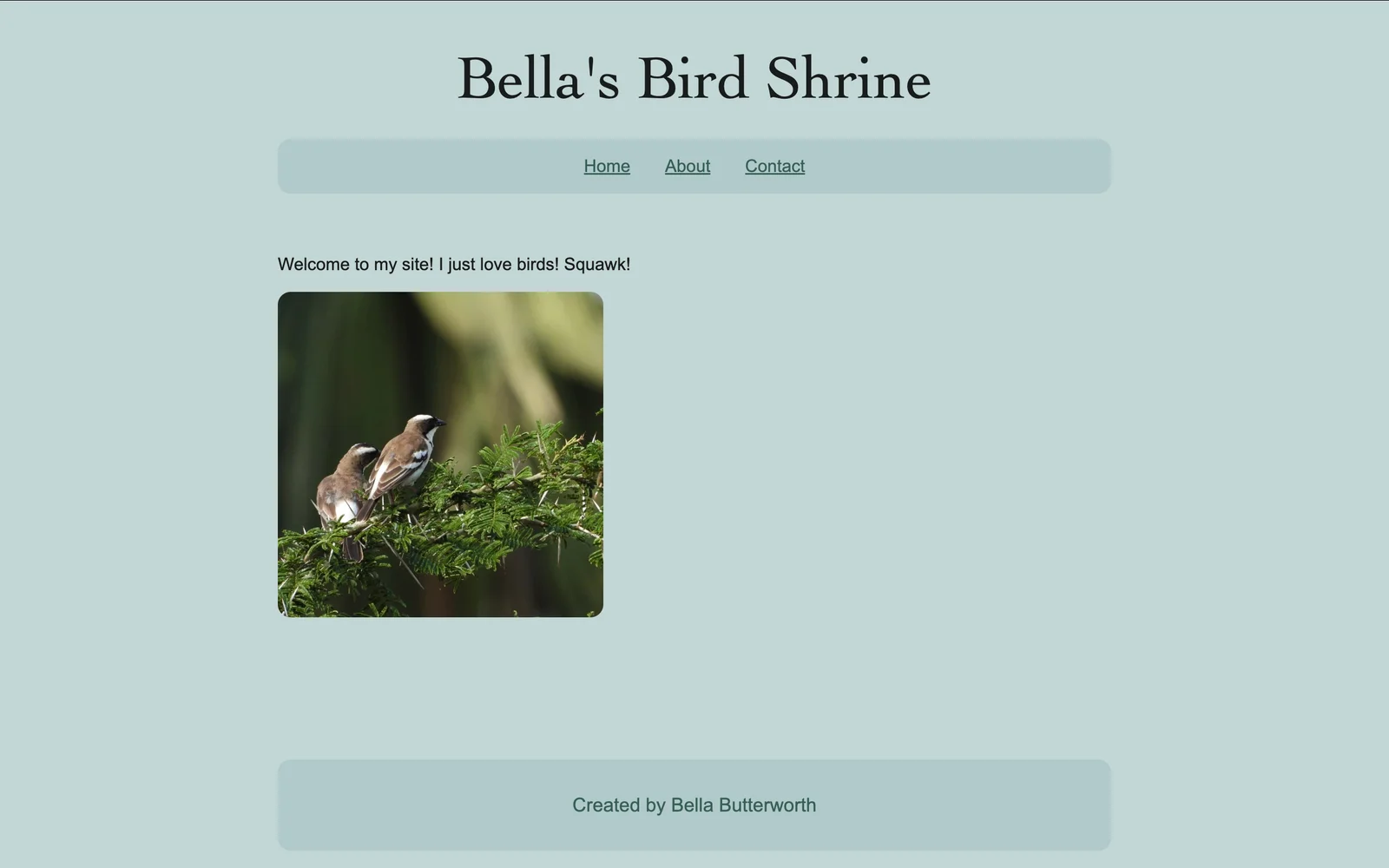
In particular, we’ll focus on the basics of CSS and how to get your site onto the internet for everyone to see. Until then, good luck and happy coding!